Getting started
Open an app from the desktop or Apps menu. Load your media, review the available controls, preview the result, and download it. File processing is generally local, but some optional features use server processing or external downloads. Save original files separately.
Boothby On Air
Open the DJ player to hear the track library. The two decks play tracks in a shuffled set with smooth transitions. Cover images appear on the platters when available. Browsers may require a Start Music tap.
VoidForge 3D and Mastering Suite
Upload a mix, select the desired mastering settings, and compare original and processed playback. VoidForge 3D can add moving textures to stereo audio and export four discrete channels in a 24-bit WAV. Use headphone preview for a stereo approximation. This is not a Dolby Atmos master. Keep effects subtle and verify levels before release.
Dynamic Master Pro
Upload the audio, adjust compression and output ceiling, then start processing. Progress and cancellation are available where supported. Export only after the complete track finishes. Keep a backup of the original and test the download before publishing.
ID3 Tag Editor
Load a track to read available embedded tags and cover art. Review title, artist, album, year, BPM, genres, subgenres, and copyright. Missing genre suggestions are estimates, not authoritative classifications. Edit anything inaccurate before exporting. The exported comment is set to Tools @ BoothbysWorkShop.com.
Caption Catcher
Load audio and optionally paste the original lyrics in Lyrics Assisted mode. Inspect the timing timeline, correct words and timestamps, run the timing checks, then export captions. Choose the caption display style to suit your video. The preview can be hidden to free editing space.
Promo Video Studio
Choose a visual preset, upload a background image and audio, and pick the target aspect ratio. The image uses Fit without cropping by default with a softly matched background fill. Adjust visualizer size and horizontal and vertical position, along with beat motion, then edit title timing. Watch the complete preview before rendering. WebM or MP4 availability depends on your browser.
Stem Splitter
Upload audio, select the available frequency-band stem count, audition each output and download individual stems or the available bundle. These are frequency and stereo-derived layers, not guaranteed isolated vocals or instruments.
Audio Converter and Batch Audio Processor
Choose source audio, format and quality. Review resampling, channel and normalization options before converting. For several files, use batch processing and confirm the exported files play in your target software.
BPM Finder
Load a track to estimate tempo. Consider half-time or double-time results and verify by tapping along to the beat.
Loudness Analyzer and DSP Audit
Load an audio file to inspect measured loudness, peak and format indicators. Streaming targets are guidance, not promises that each platform will play the file at one fixed loudness.
Reference Match Studio
Load your mix and a reference track. Compare levels, dynamics, stereo energy and correlation. Use the downloadable report to guide your ears rather than automatically matching every number.
PhaseLab and Stereo Imaging Studio
Inspect phase correlation and side level and check mono compatibility. Apply stereo width carefully and compare against the unprocessed version.
Studio EQ Pro
Load a file, adjust EQ bands and use A/B comparison. Remove unwanted resonances before adding large boosts.
Vocal Studio
Import vocals, adjust dynamics and tonal controls, audition changes and export. Judge sibilance, intelligibility and artifacts on headphones and speakers.
Audio Restoration Studio, Spectral Audio Repair, Noise Remover and Clip Fixer
Import a recording, inspect its defects, adjust one corrective process at a time and compare before and after. Strong repair settings can damage wanted detail, so use the mildest effective correction.
Audio Trimmer and Fade In and Out
Select in and out points, preview the transition, and export the result. Check fade tails to avoid abrupt endings.
PulseForge Transient Designer
Import audio, adjust Attack, Sustain, and Sensitivity, click Process, compare Original and Processed, then Export WAV. Works in the browser; this is not a replacement for mastering or clipping detection. High attack can create peaks; monitor output level.
SubForge Bass Architect
Import a recording, choose sub-bass frequency, weight, harmonics, and mono sub blend. Click Process, compare the before and after versions, and Export WAV. The tool shapes existing bass and adds synthesized harmonics; it cannot recover bass that is not present.
DJ Track Preparation
Load a track, inspect its tempo and audio properties, adjust preparation controls and export or download its report as available.
Music Release QC
Run the release checks for basic file and metadata issues, read the warnings, and correct the source files before final delivery.
Copyright Scan
Upload a track to inspect its embedded metadata and file fingerprint. The scanner checks the MusicBrainz catalog by title, artist or ISRC and presents possible recording matches for review. BMI and ASCAP links are for manual publishing searches. These checks do not prove copyright clearance or identify all sampled music.
Electronic Press Kit
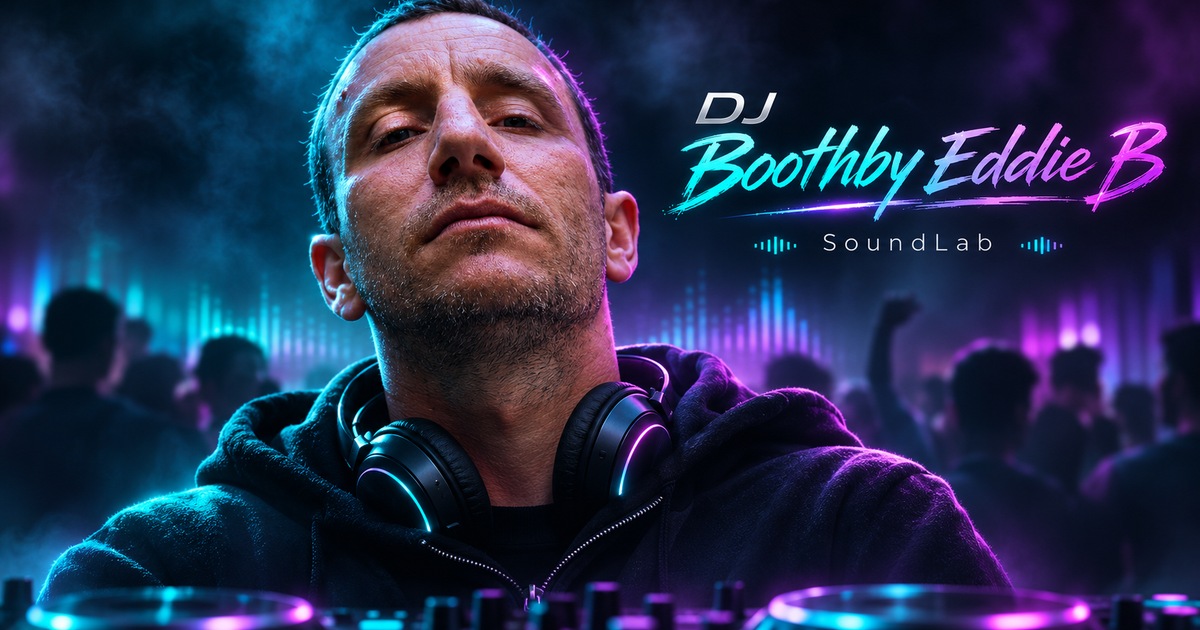
Open the EPK for artist background, music identity, promotional resources and booking contact. Open DJ Boothby Eddie B EPK.
Accounts and saved work
Open Account in the Apps menu to sign in or create an account and manage projects. Some projects save editing settings only and require you to select the original media again.
Privacy and rights
Review Privacy, Terms, and Copyright before processing material you do not own.
Install as an app
Use Install from the Apps menu where offered, or choose Add to Home Screen on a supported browser. Browser capabilities differ and certain functions still need an internet connection.